Weavero is a free, open-source plugin for Zotero (7 to 10-beta) that layers convenience features on top of the standard library and reader: clickable links in annotation comments and notes, a fast filter pane, bookmarks, related-item tools, a structured tabs menu, tab groups and window management, and extra items-tree columns. Every feature is individually toggleable in Preferences.
- 📦 Download the latest release (
weavero.xpi) - 💻 Source code on GitHub (AGPL-3.0, same license as Zotero)
- 🐛 Report an issue
Clickable links in annotations and notes
URLs, zotero:// links, and optional app schemes (obsidian://, vscode://, and 15 more) become clickable in annotation comments and notes — across the items tree, item pane, reader sidebar, and in-PDF popups. Inline or icon-and-popup display, colour-coded by link kind, with inline markdown. Right-click menus add Copy Item / Collection / Search Link and Copy Link to This Page / Location / Selected Text in the reader — all standard zotero:// links that work without the plugin.
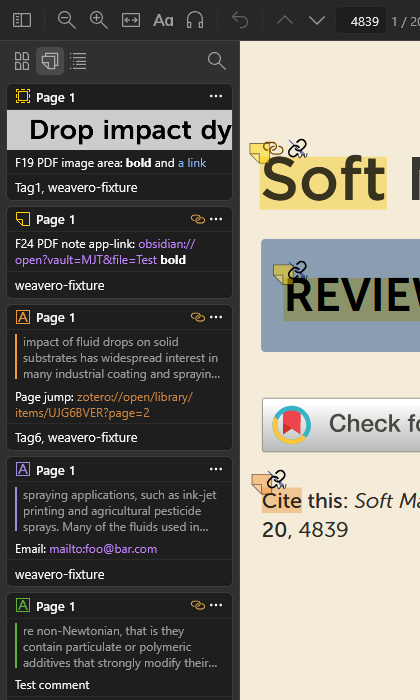
Interlinked navigation — Ctrl/Cmd-click an internal PDF/EPUB/snapshot link to follow it in a split pane, or Shift+click to follow it in a coupled second window, without losing your place.
Filter your library and reader
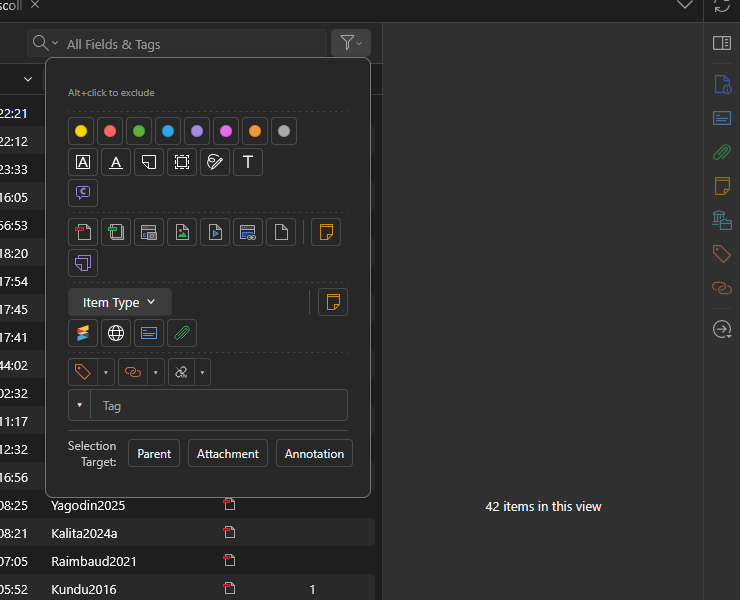
A funnel next to the search box opens a filter popup: annotation colour/type/comment, attachment and item type, Has DOI / URL / Related / Links, and multi-select tag, publication, author, and collection facets — with include/exclude, OR groups, and a removable chip bar above the items tree. A matching funnel in the reader filters the open document’s annotations. A second funnel beside the reader sidebar’s search box filters the annotations pane the same way — colour, type, tag, comment, person, date — while the document keeps every annotation, so ink strokes can leave the pane and stay on the page. Per document, or as a default for all of them (Use as Default replaces the default, Alt+click adds to it). Zotero’s own colour and tag selector at the foot of the pane folds to a handle: click the pill to expand or collapse it (one state for every document, kept across restarts; a selection made before folding stays in force and turns the pill blue). The library’s Tag Selector gets the same handle on its top edge, and View → Layout → Tag Selector follows it. Each handle has its own switch in Settings; off, the selector is Zotero’s again. The funnel itself can be switched off there; the pane then follows the types ticked in Settings. Two marks: a green line under the funnel, and under the chips the default sets, says a default other than “show everything” exists (those chips are shown in every document, even one with nothing of that kind); a blue dot on the funnel says this document departs from the default, with its own filter on top of it or after Clear. The footer names the default wherever the document departs from it.
Bookmarks
Bookmark items, collections, searches, and URLs from a collections-pane dropdown — and in-document locations (positions, pages, text passages, annotations) from a Bookmarks tab in the reader sidebar. Folders, drag-and-drop, search, filtering, and hover previews. Right-click the Bookmarks tab to show or hide the “p. N” labels for that document, the way the Outline tab does.
Reader outline
The reader’s Outline tab becomes editable: rename entries, add your own (text selections, page anchors, pinned spots), drag to reorder or nest, and switch between the document’s original outline and your curated Weavero outline. The outline also highlights the section you’re currently reading as you scroll — embedded, extracted, and Weavero outlines alike — marking the deepest entry visible in your tree without ever expanding or collapsing it for you. Entries show their page number; right-click the Outline tab to hide the numbers for one document, or turn them off globally in Preferences. Works in PDFs, EPUBs (the book’s table of contents, scrolled or paginated) and web snapshots (built from the page’s headings).
Tabs and windows
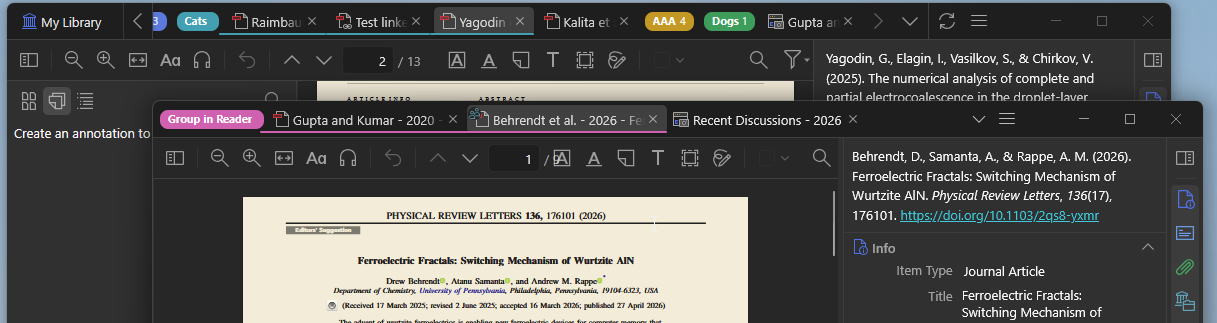
Pinned tabs, named colour-coded tab groups, multi-select tabs, and a structured “List all tabs” menu grouped by library with per-library and file-type filters. Reader tabs move or tear off to another window with no reload — scroll position, zoom, and selection preserved. Separate reader windows can show the full item-details pane.
Extras
Items-tree columns for annotation / tag / related counts, an Added By badge for annotations in group libraries with per-user colours, a Firefox-style hidden title bar, Open in External Viewer, a Plugins Manager with a search box (Ctrl+F), cards showing author, GitHub owner, version and last update, a remembered time frame for Recent Updates, its sidebar back on Zotero 11, in a normal resizable window, a View → Layout menu that follows the tab (the reader’s Sidebar, Context Pane and colour/tag selector in a reader tab, the library’s panes in the library tab), and a PDF outline text highlight.
Install
- Download the latest
weavero.xpifrom the Releases page. - In Zotero:
Tools → Plugins → ⚙ → Install Plugin From File…→ pick the XPI. - Restart Zotero if prompted.
Weavero is also listed in the community Zotero Addons plugin store — if you have that plugin installed, search for “Weavero” there.
Safety and compatibility
Weavero never writes to or modifies your PDF files or attachments — it only layers UI on top of Zotero’s standard views and keeps its own data in separate files. It is developed and tested against Zotero 10.0-beta; a few features rely on Zotero 10 APIs and may be unavailable on Zotero 9. See the README for full feature documentation, the filtering rules for the filter logic, compatibility.md for feature-by-version status on Zotero 9 vs 10, Developing Zotero plugins with AI for the from-scratch guide, the Weavero workflow, and ecosystem resources (the workflow’s instruction files themselves are published in the repo), and TESTING.md for how Weavero is tested (including the performance protocol and the Windows taskbar overlay findings, which may interest other plugin developers).